Scripts
Scripts are the heart of your layout automation. A script consists of a sequential list of actions. You can bundle actions into groups and run different actions depending on the state of your layout with conditions.
For a better overview, we recommend organising your scripts in a folder structure.
Configuration
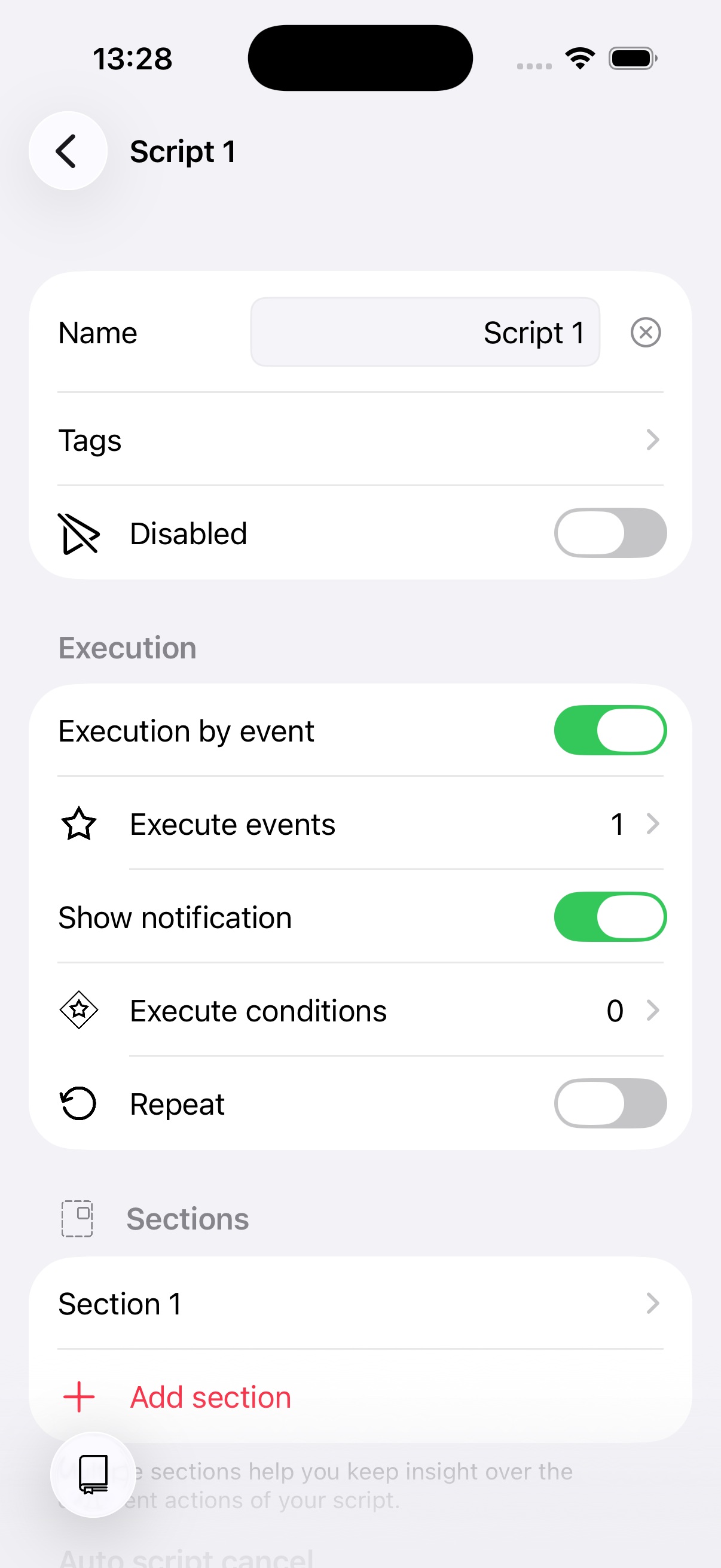
A script has the following configuration options:
| Configuration | Description |
|---|---|
| Name | A descriptive name for the script. |
| Tags | Labels used for categorisation and random script execution. |
| Show in throttle | Whether the script appears in the automate tab of the throttle. |
| Disabled | A disabled script cannot be executed — manually or by events. |
| Notes | Free-text notes for documenting what the script does. |
Repeat
A script can be set to repeat. When repeat is enabled, the script runs all its actions and then evaluates the repeat conditions:
- No repeat conditions — The script repeats indefinitely until you manually stop it.
- With repeat conditions — The script repeats only while the conditions are met. You can combine multiple conditions with AND (all must match) or OR (any must match).
Auto cancel
When enabled, the script is automatically cancelled after a configurable timeout (in milliseconds). This is a safety net to prevent scripts from running indefinitely if something unexpected happens.
Show notification
When enabled, a system notification is shown whenever the script starts running.
Execution
A script can be triggered either manually, by an event, or both.
Manual triggered scripts
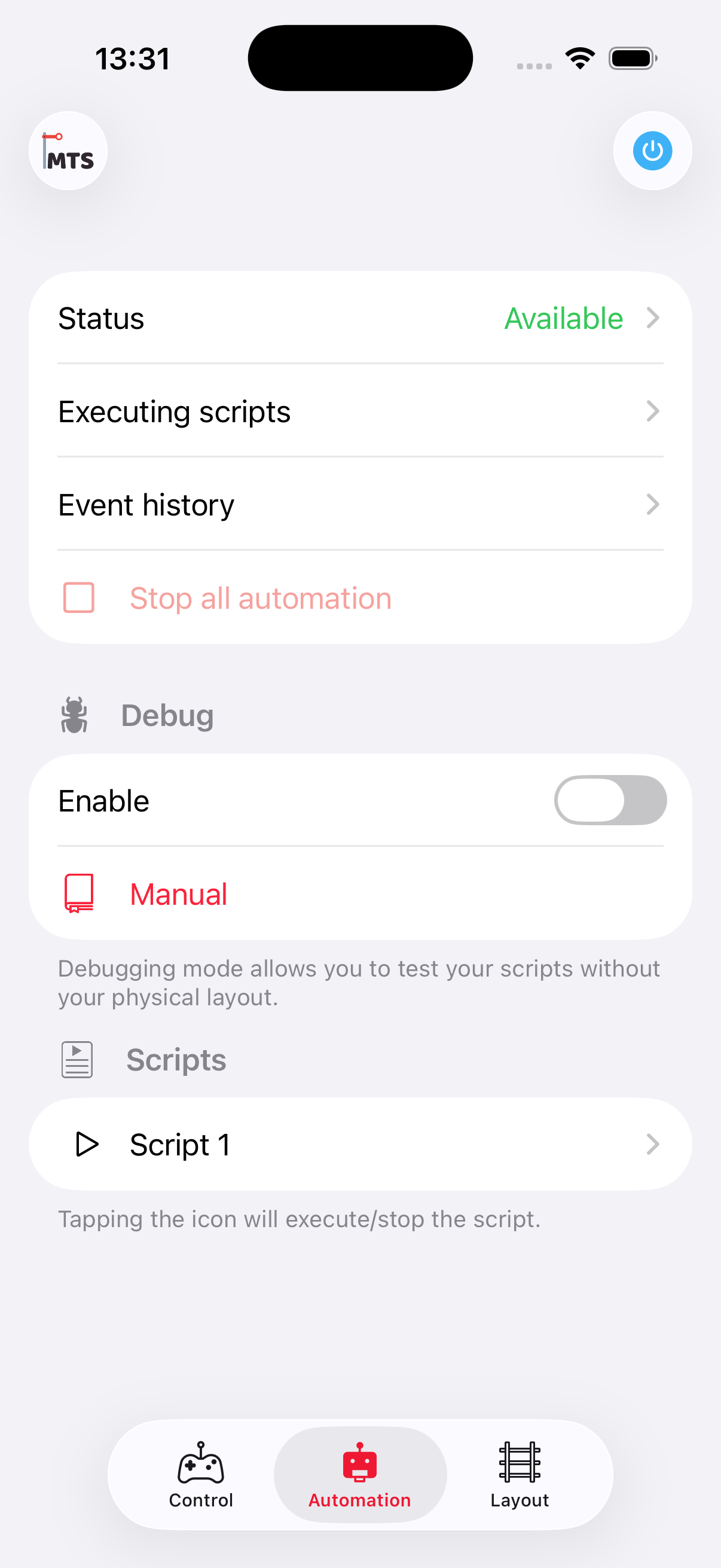
Manual scripts can be triggered
from the automation tab
Manual scripts can be started from the automate tab of the throttle or from within a timetable.
Event triggered scripts
Scripts can be triggered by events originating from:
- Accessories — When an accessory changes to a specific state.
- Feedback sensors — When a sensor becomes active or inactive, optionally filtering by a specific vehicle (RailCom). Can auto-select the detected vehicle for use in the script.
- Vehicles — When a vehicle's speed, direction, function, or profile changes.
- Cameras — When a camera detects a vehicle at a detection point.
- Clock — When the model clock hits a specific time (hour and/or minute). Supports wildcards — for example, every hour at minute 30. Requires the clock to be running.
- Variables — When a variable reaches a specific value.
- System — When the command station connects (startup).
- Scripts — When another script starts, finishes, or is cancelled.
A script can have multiple execution events — any of them will trigger the script.
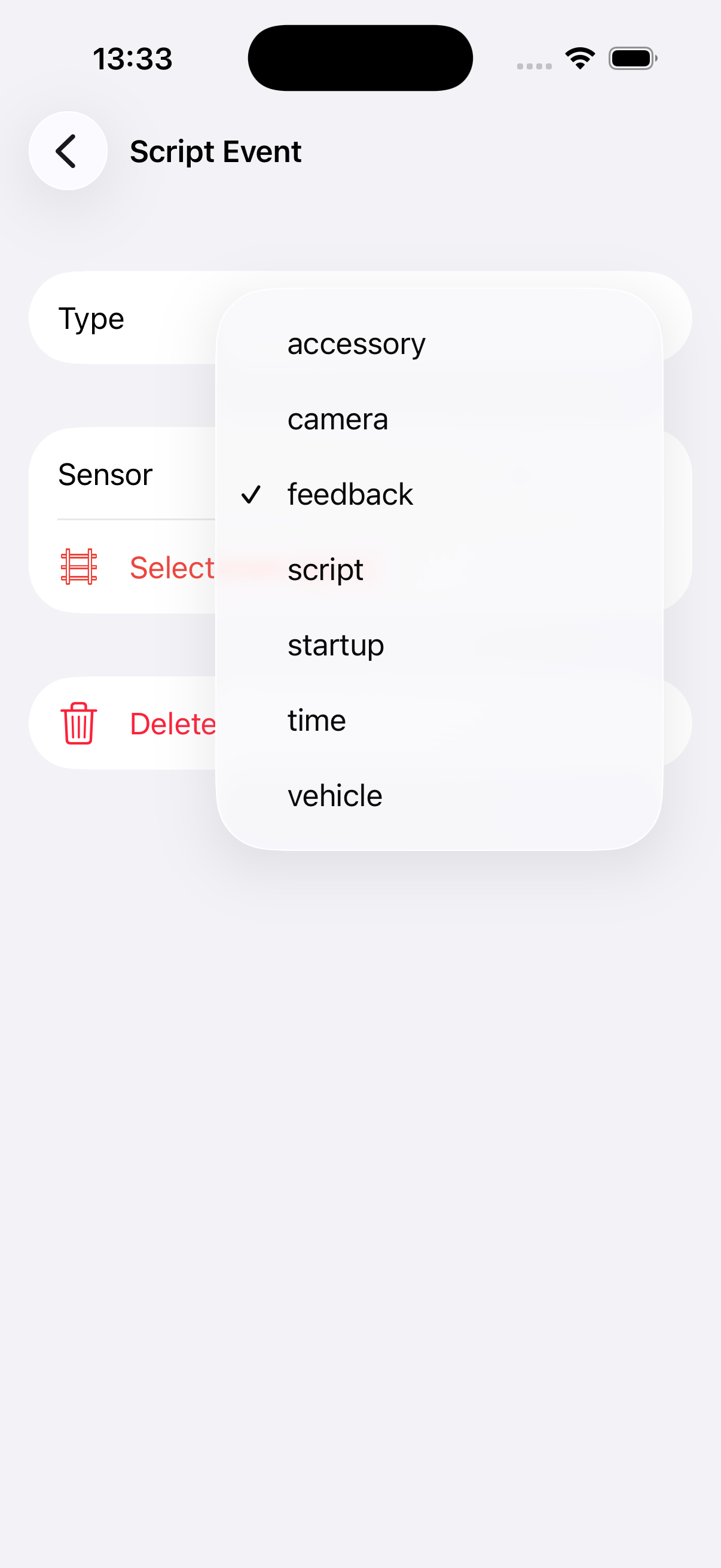
Different types of
execution events
Execute conditions
Event-based scripts can also define a condition for execution. Even when an event triggers, the script only runs if its condition is met.
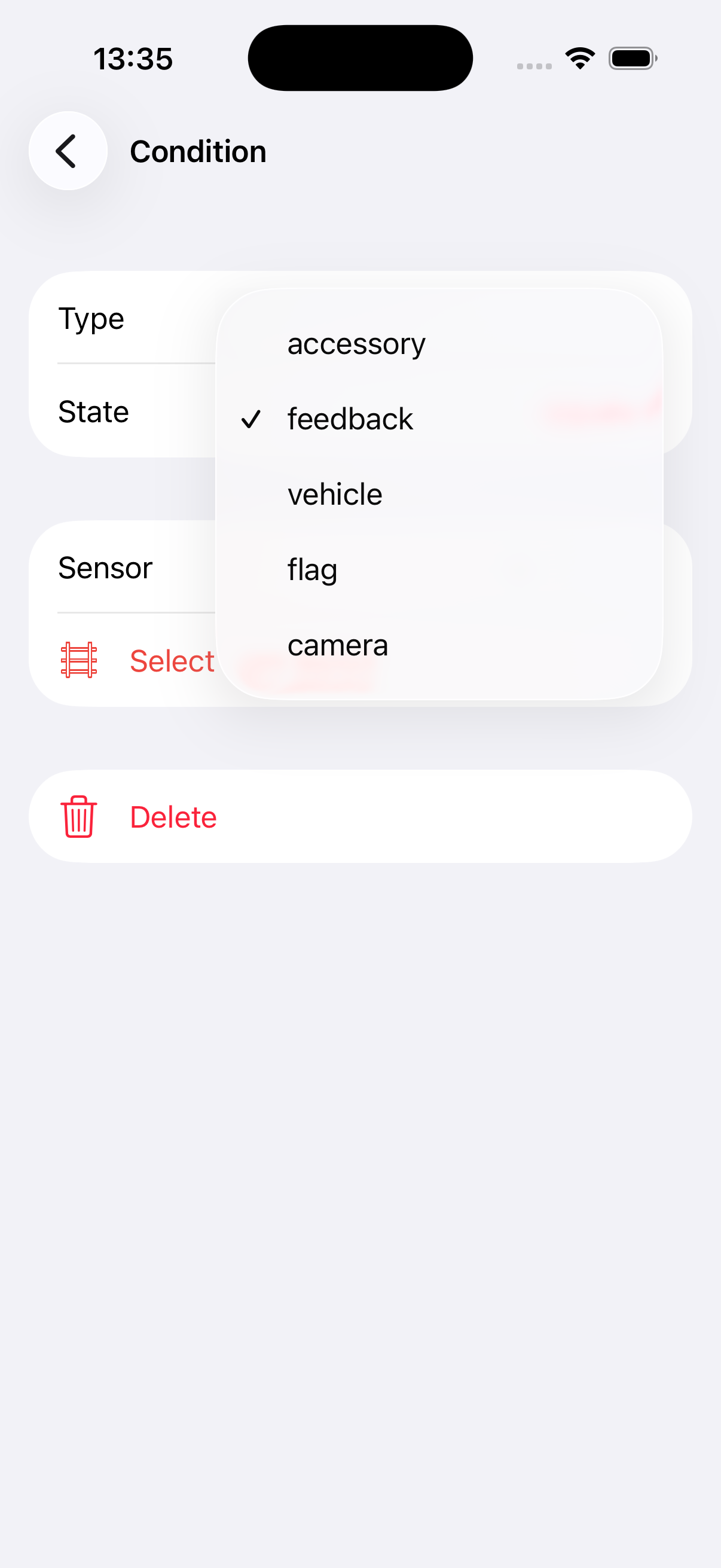
Different types of conditions
See Conditions for the full list of rule types you can combine.
Actions, groups, and conditions
A script is a list of actions that run from top to bottom. Tap + to add an action, and drag actions to reorder them.
To keep an overview of what can become many steps, bundle actions into groups — for example "Depart from station A", "Travel to station B", and "Arrive at station B". A group can be folded away, disabled, and repeated.
To act on the state of your layout, use a condition: if a signal is red, then stop the train, else keep driving.
TIP
Scripts from earlier versions were divided into sections. These are converted to groups automatically.
Execution log
When a script runs, each action's execution is logged. You can view the log to see exactly what happened, including timing, results, and any captured images (e.g., from camera detection or path finding). This is helpful for debugging scripts.
Examples
For inspiration or a better understanding of the features, have a look at the tutorials or the examples.