Actions
An action is the component that actually changes something on your layout. A script is a list of actions; with a group you bundle actions into a logical step, and with a condition you run different actions depending on the state of your layout.
Execute conditions
Just like scripts, every action can be conditional. You can configure whether all (AND) or only one (OR) condition must be met to execute the action.
Conditions can be based on accessories, feedback sensors, vehicle state, flags, variables, camera detection, the model clock, or chance. If the conditions are not met, the action is skipped and the script continues with the next action.
Custom label
Every action can have an optional custom label that appears alongside the auto-generated description. This helps you annotate actions to keep your scripts readable — for example, "slow down before curve" on a set speed action.
Action selector
Adding an action starts with tapping the + button in the script, or inside a group or condition. The action selector appears, allowing you to pick the desired action. It shows your recently used actions at the top, followed by the categories below.
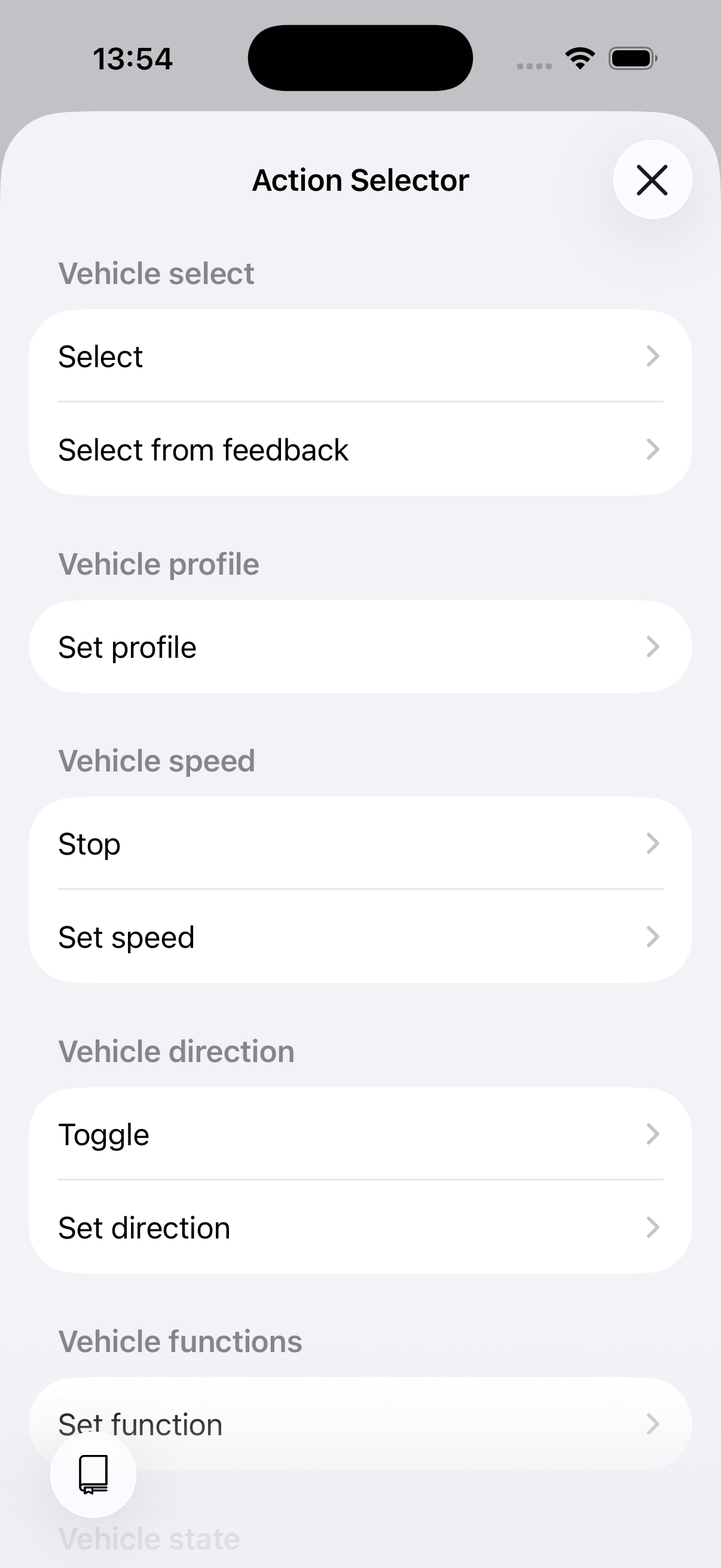
The action selector
Action types
Actions are organised into categories:
- Logic & flow — Run actions under a condition, group actions, and set flags and variables.
- Vehicles — Select, drive, and manage your locomotives.
- Layout — Control turnouts, signals, and other accessories.
- Train dispatcher — Request and release path clearances.
- Timing — Wait for time or conditions.
- Control — Execute scripts, control timetables, play sounds, and show notifications.
Overview
| Category | Action | Description |
|---|---|---|
| Logic & flow | Condition | Run different actions depending on conditions (if / else if / else) |
| Logic & flow | Choice | Let the user pick an option and run the actions of that option |
| Logic & flow | Group | Bundle actions into a named step that can be folded, disabled, or repeated |
| Logic & flow | Set flags | Set script-level flags |
| Logic & flow | Set variable | Modify a variable (set, increase, decrease) |
| Logic & flow | Reset variables | Clear the value of every variable |
| Vehicles | Select vehicle | Set the active vehicle for subsequent actions |
| Vehicles | Select from feedback | Select vehicle by reading a feedback sensor (RailCom) |
| Vehicles | Set speed | Set speed as a percentage (0–100) |
| Vehicles | Stop vehicle | Set speed to 0 |
| Vehicles | Set direction | Set direction to forward or reversed |
| Vehicles | Toggle direction | Reverse the current direction |
| Vehicles | Set function | Turn a vehicle function on or off (by icon or by function) |
| Vehicles | Set profile | Apply a vehicle profile (idle, shunting, slow, medium, fast) |
| Vehicles | Store state | Save the vehicle's current state |
| Vehicles | Restore state | Restore a previously saved state |
| Layout | Set accessory | Set an accessory to a specific state |
| Layout | Set route | Apply a predefined route |
| Layout | Set path | Automatically find and set a path through the layout |
| Train dispatcher | Request clearance | Ask the dispatcher for permission to drive a path |
| Train dispatcher | Release clearance | Release the clearance currently held by the script |
| Timing | Wait | Pause for a fixed or random duration |
| Timing | Wait for condition | Pause until a condition becomes true |
| Control | Execute script | Run another script inline (specific or random by tag) |
| Control | Control timetable | Start or stop a timetable |
| Control | Play sound | Play a sound (blocking or in background) |
| Control | Show notification | Display an in-app notification |