Remote connection
Beta
Remote connection is a beta feature. It works, but it is still being refined. Please let us know how it works for you.
With remote connection, several devices work with one layout. One device runs the layout: it is connected to the command station, holds the profile, and runs the automation. The other devices connect to it and use that same layout, with its automation, its trains, and its profile.
Why use remote connection
Automation on every device, also with a Z21
A Z21 allows automation on only one connection at a time. Without remote connection, that means only one device can run your scripts, timetables and train dispatcher. Every other device can drive trains and set turnouts, but has no automation.
With remote connection, only the device that runs the layout talks to the Z21, so the limit no longer gets in the way. Every connected device works with that one automation: start and stop scripts, routes and timetables, follow what is running, and see the same clearances of the train dispatcher. Whether you start a script on the iPad next to the layout or on the iPhone in your hand, it is the same script on the same layout.
Share your whole model with visitors
When friends or club members visit, they don't need a copy of your profile. They install Model Train Script on their own iPhone or iPad, connect to your layout, and immediately have everything: your vehicles, your track plan, your routes and your scripts. Everyone can drive their own train while the automation keeps the rest of the layout running.
Because the model lives on one device, there are no copies that drift apart. When you change something, every connected device sees it straight away.
Setting up
- On the device that runs your layout, open Settings → Advanced and turn on Remote connection under Beta. Other devices on your network can now find it.
- On the other device, turn on Remote connection as well. The main menu now shows Connection.
- On the other device, open the main menu, tap Connection, and choose the device that runs your layout.
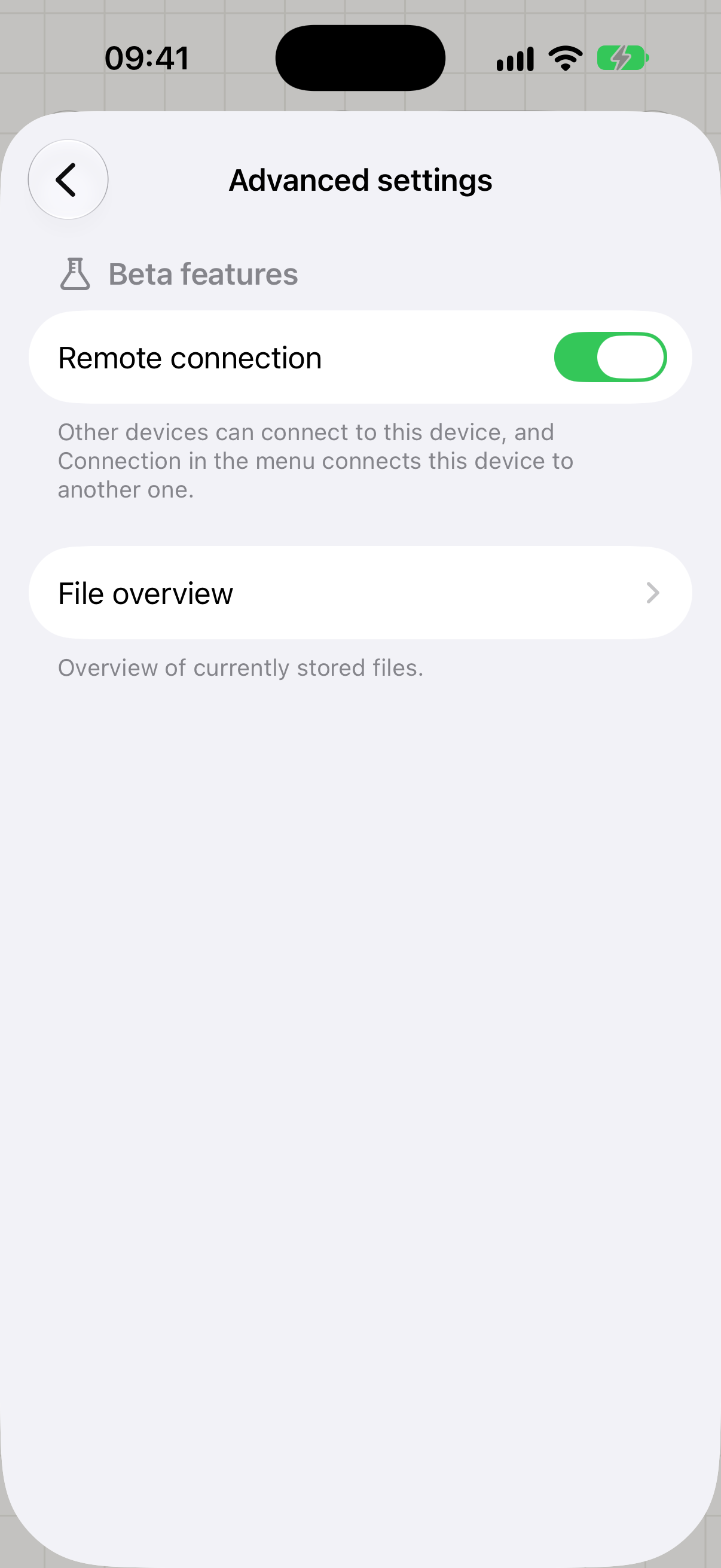
Remote connection under Settings → Advanced
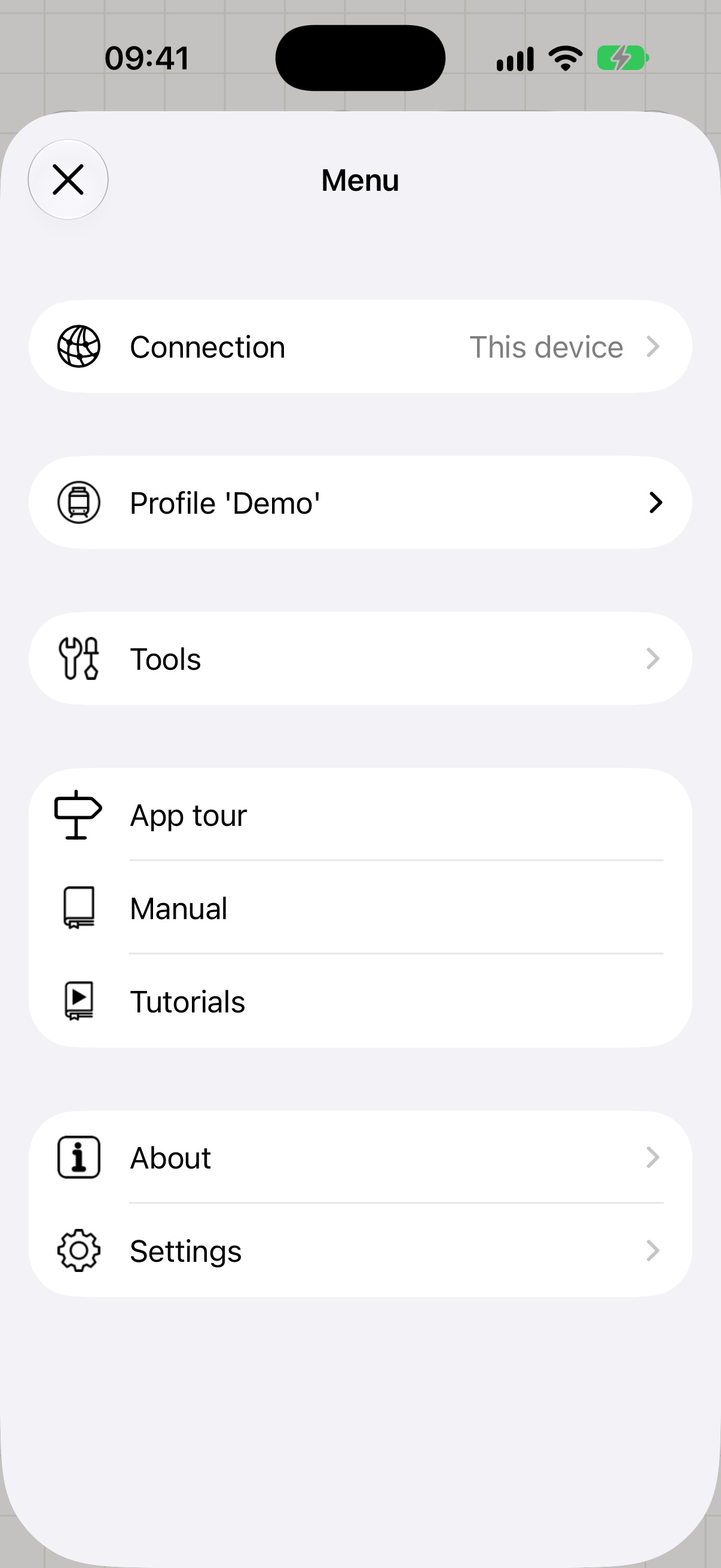
With remote connection on, the menu shows Connection
Both devices must be on the same local network. The first time, iOS asks for Local Network permission; tap Allow.
The Connection screen
The Connection screen lists This device and the other devices found on your network, with a checkmark at the one this app uses. Pull down to search again. The main menu shows the current choice at a glance.
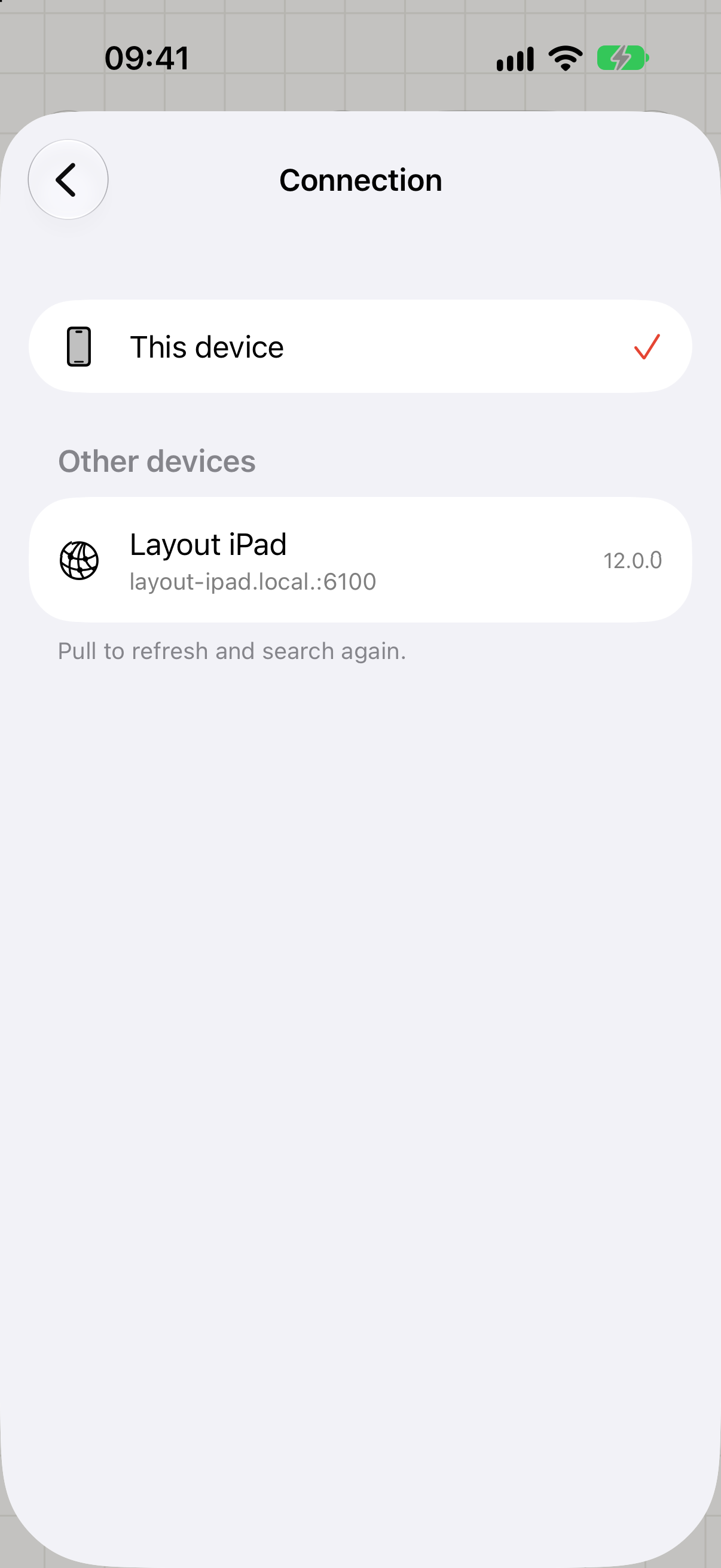
The Connection screen lists the layouts found on your network
Choose This device to go back to using this device's own layout.
INFO
With remote connection off, the device keeps its layout to itself: no other device can connect to it.